Trellan

Everything your brokerage runs on, in one place.

Install Trellan

Put Trellan on your phone’s home screen. It takes about one minute.

Open trellan.ai in Safari (iPhone) or Chrome (Android), then follow the steps for your phone.

Watch how

iPhone

Use Safari.

  1. 1

    Tap the Share button

    It is in the bar at the bottom of Safari. On iOS 26, tap ••• first, then Share.
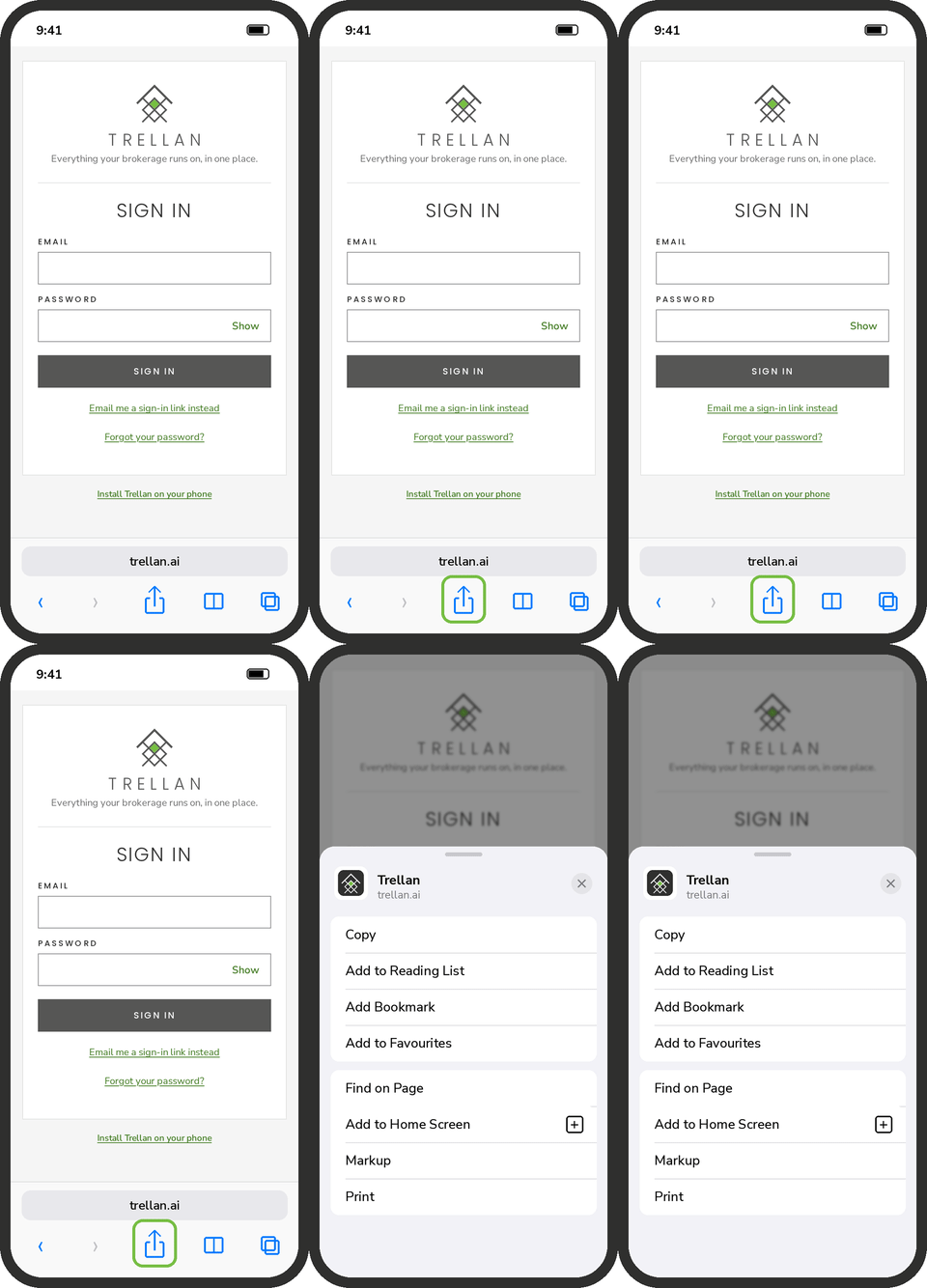
    Safari on trellan.ai with the Share button marked
  2. 2

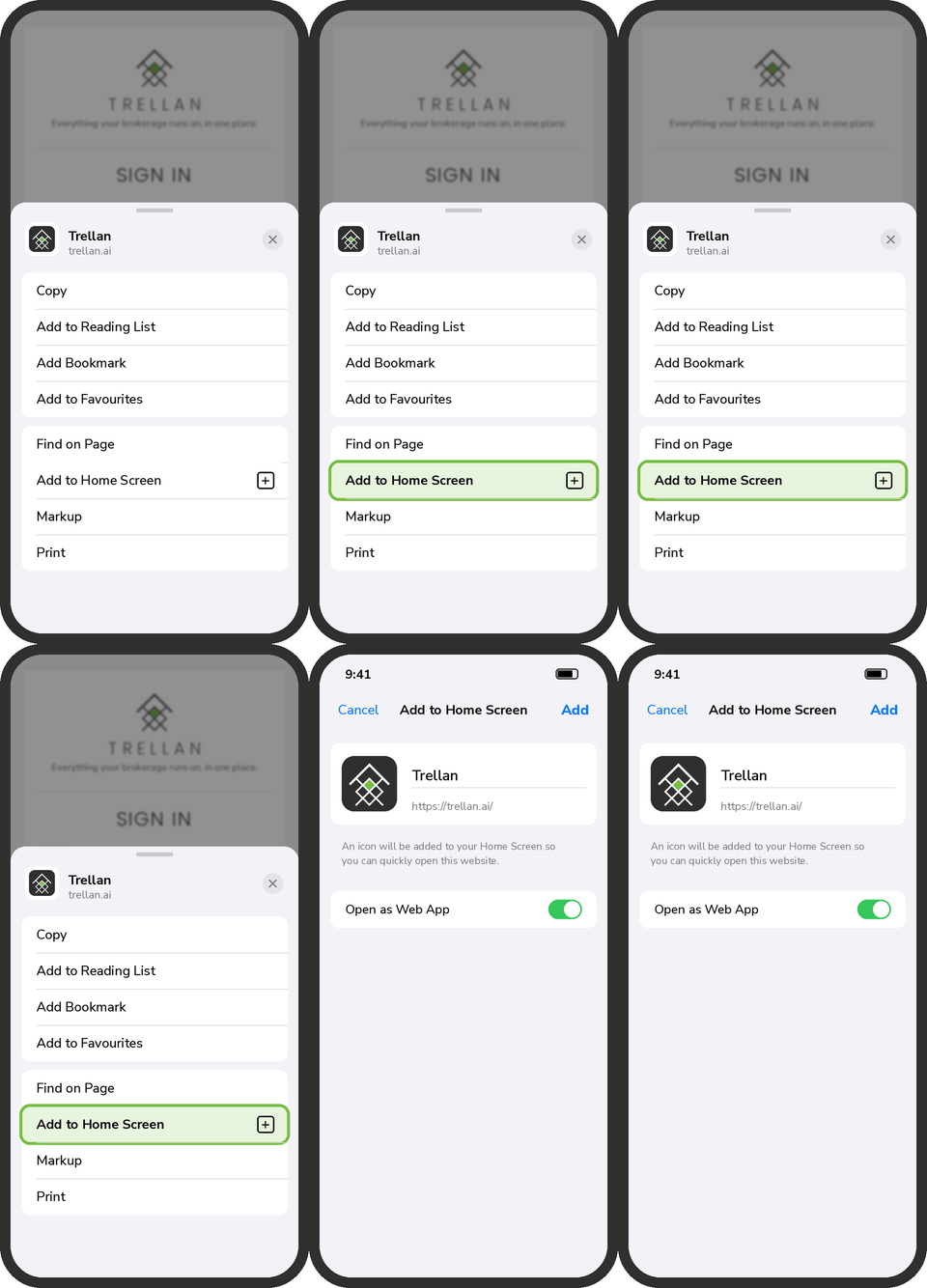
    Tap “Add to Home Screen”

    Scroll down the list to find it.

    The share list with Add to Home Screen marked
  3. 3

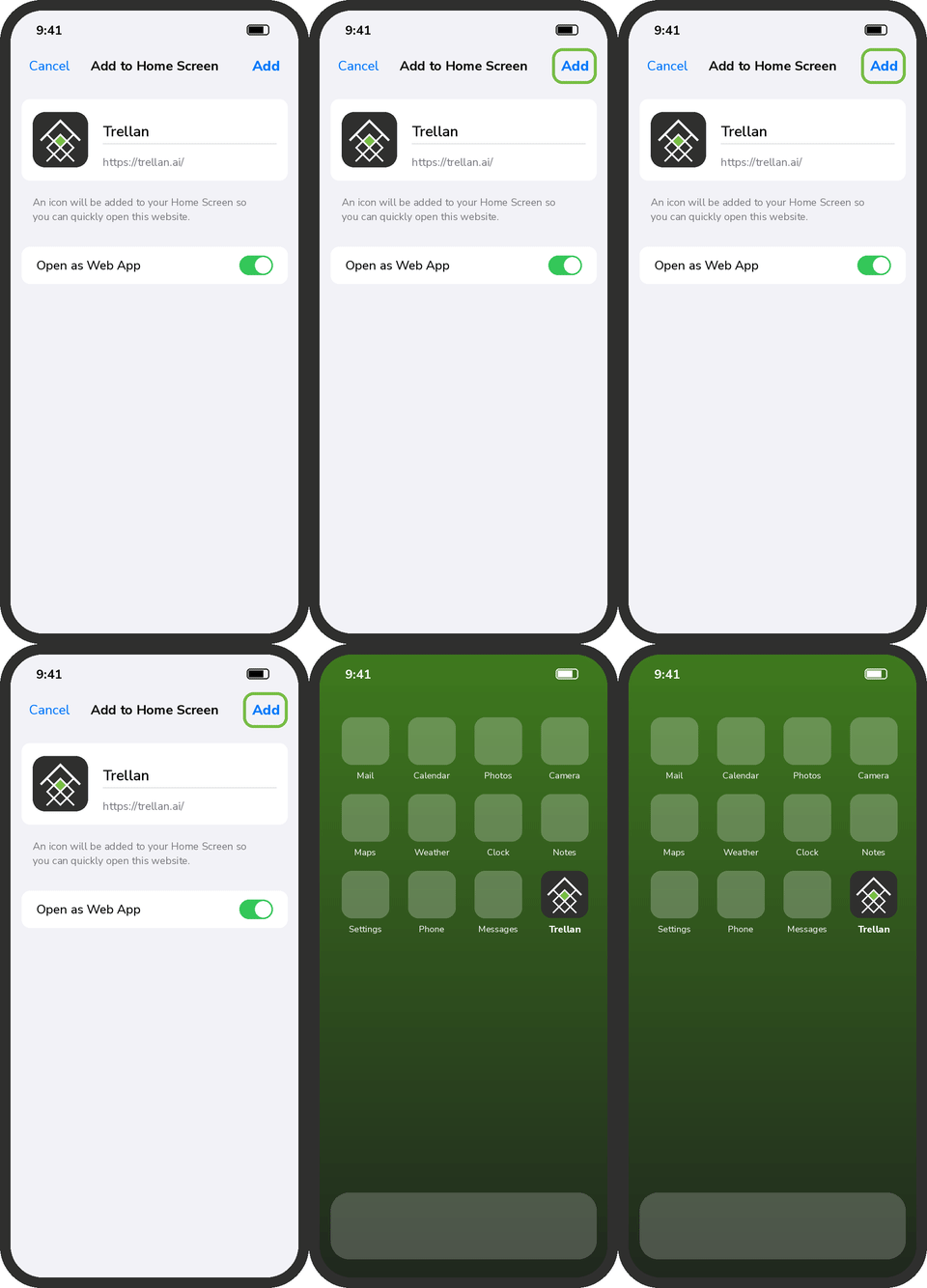
    Keep the name Trellan and tap Add

    The Add to Home Screen page with the Add button marked
  4. 4

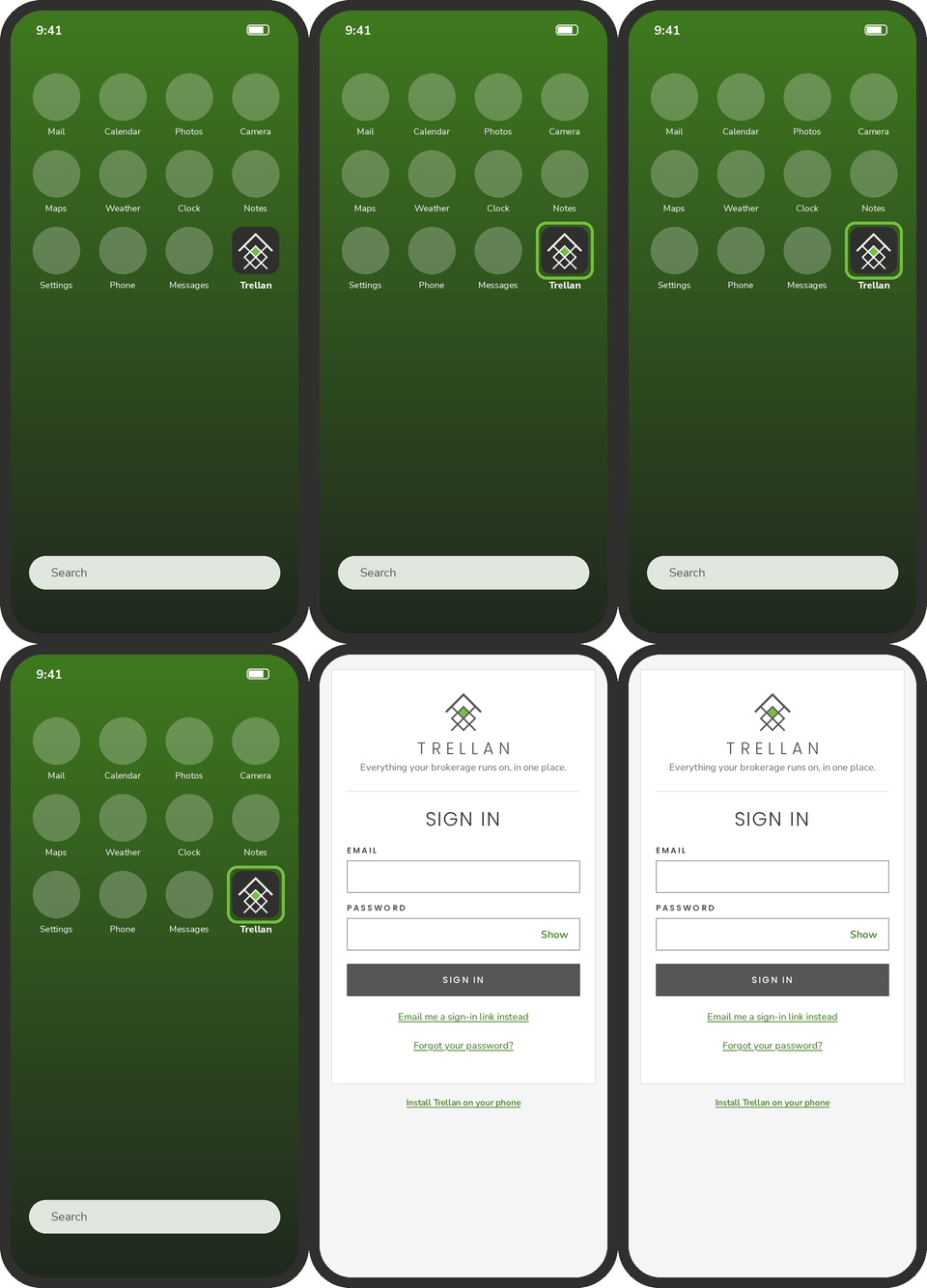
    Open Trellan from your home screen and sign in

    Trellan opens full screen, like any app.
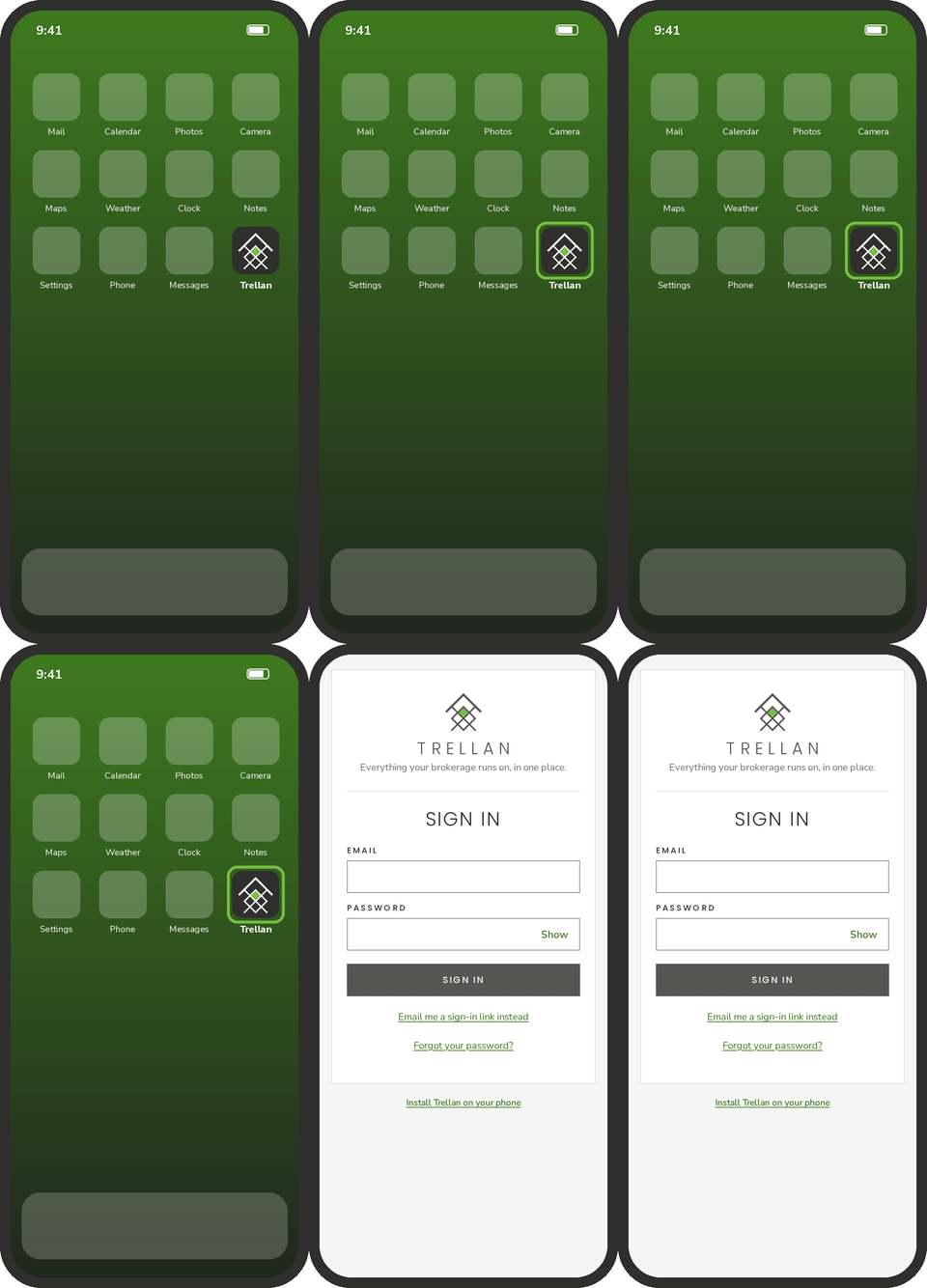
    A home screen with the Trellan icon marked, then the Trellan sign-in page

Android

Use Chrome.

  1. 1

    Tap the menu at the top right

    It is the three dots next to the address bar.
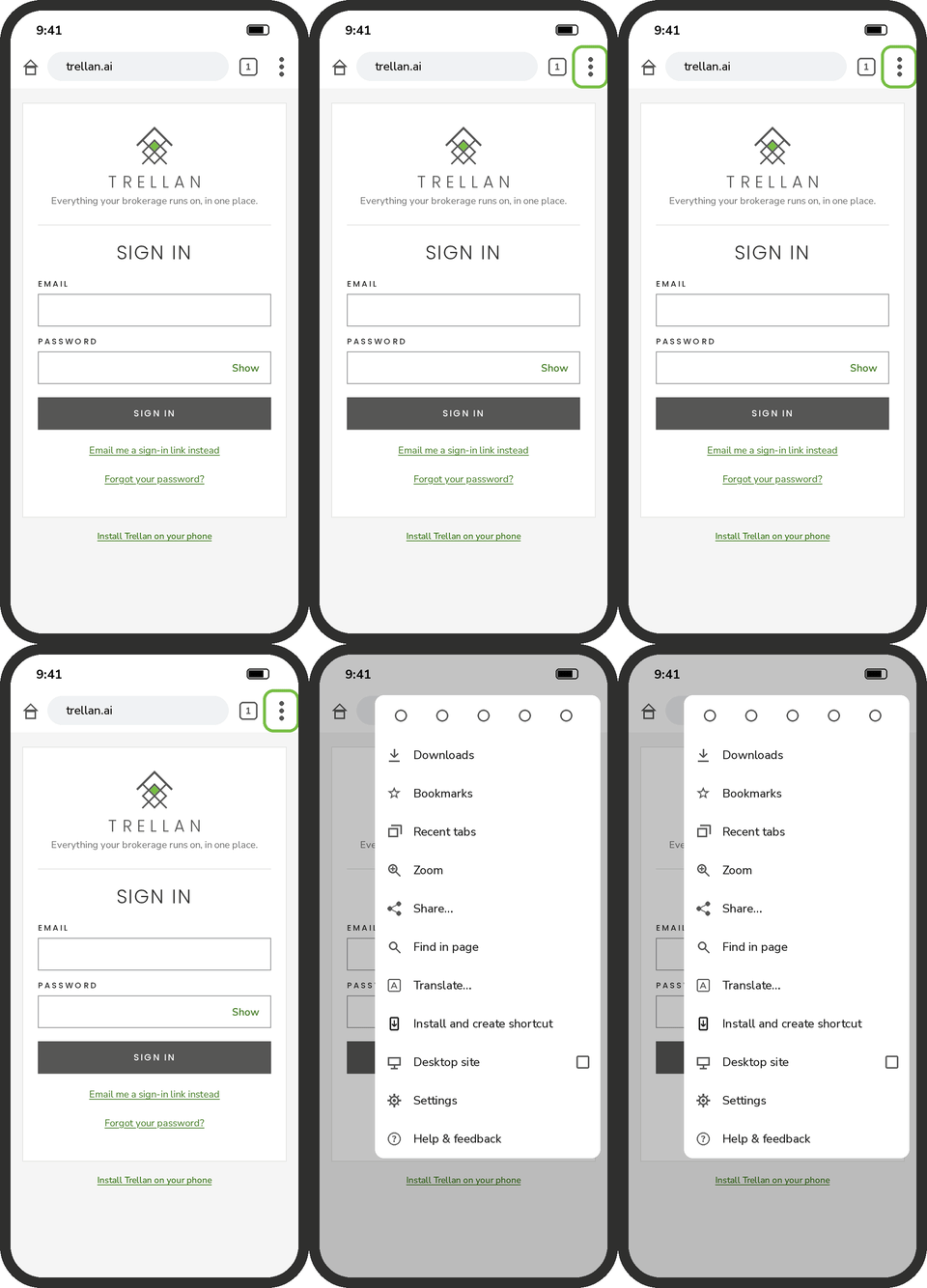
    Chrome on trellan.ai with the three-dot menu marked
  2. 2

    Tap “Install and create shortcut”

    On older phones it says Add to Home screen or Install app.
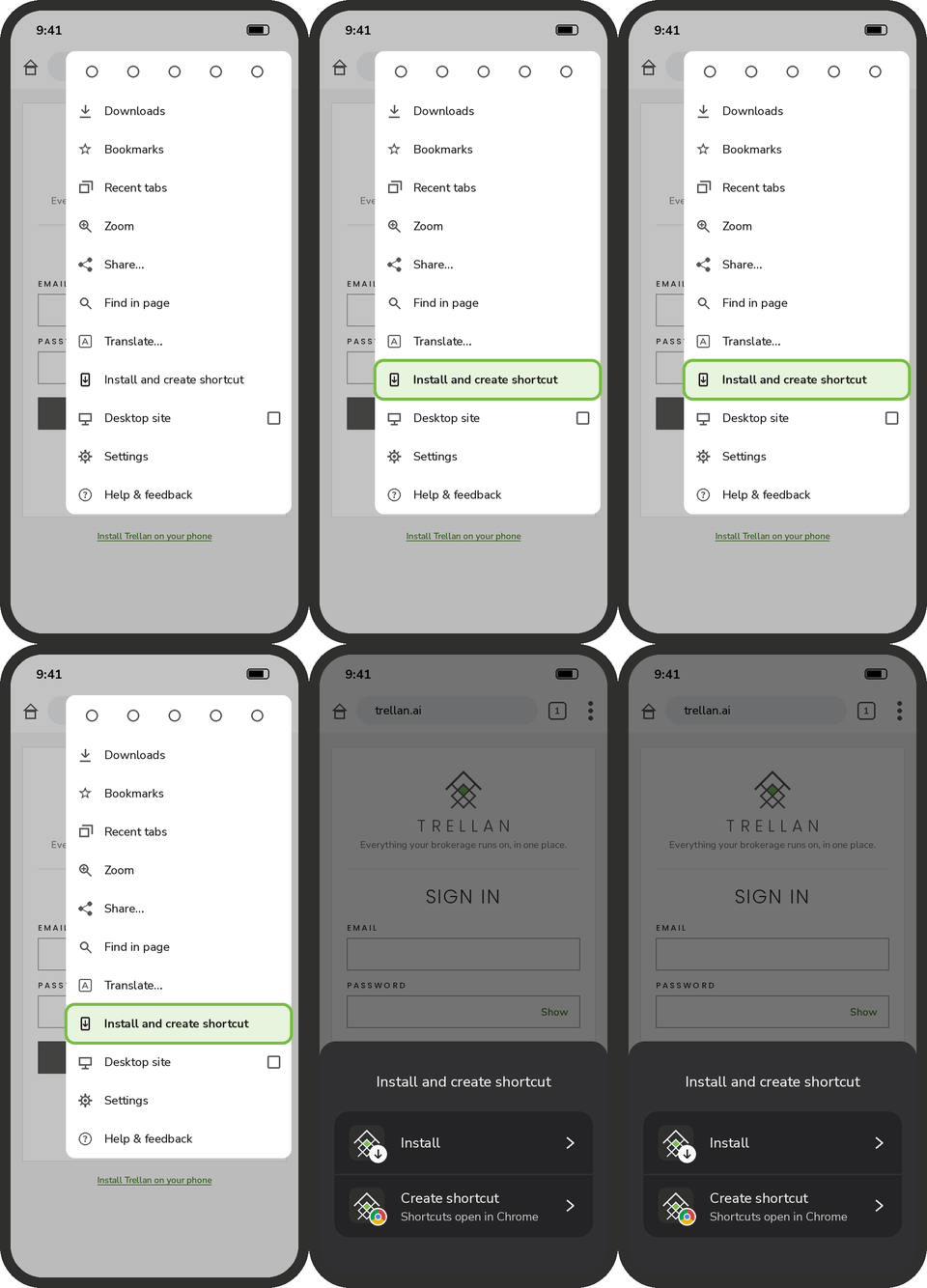
    Chrome's menu with Install and create shortcut marked
  3. 3

    Tap Install

    Not Create shortcut: a shortcut only opens Chrome.
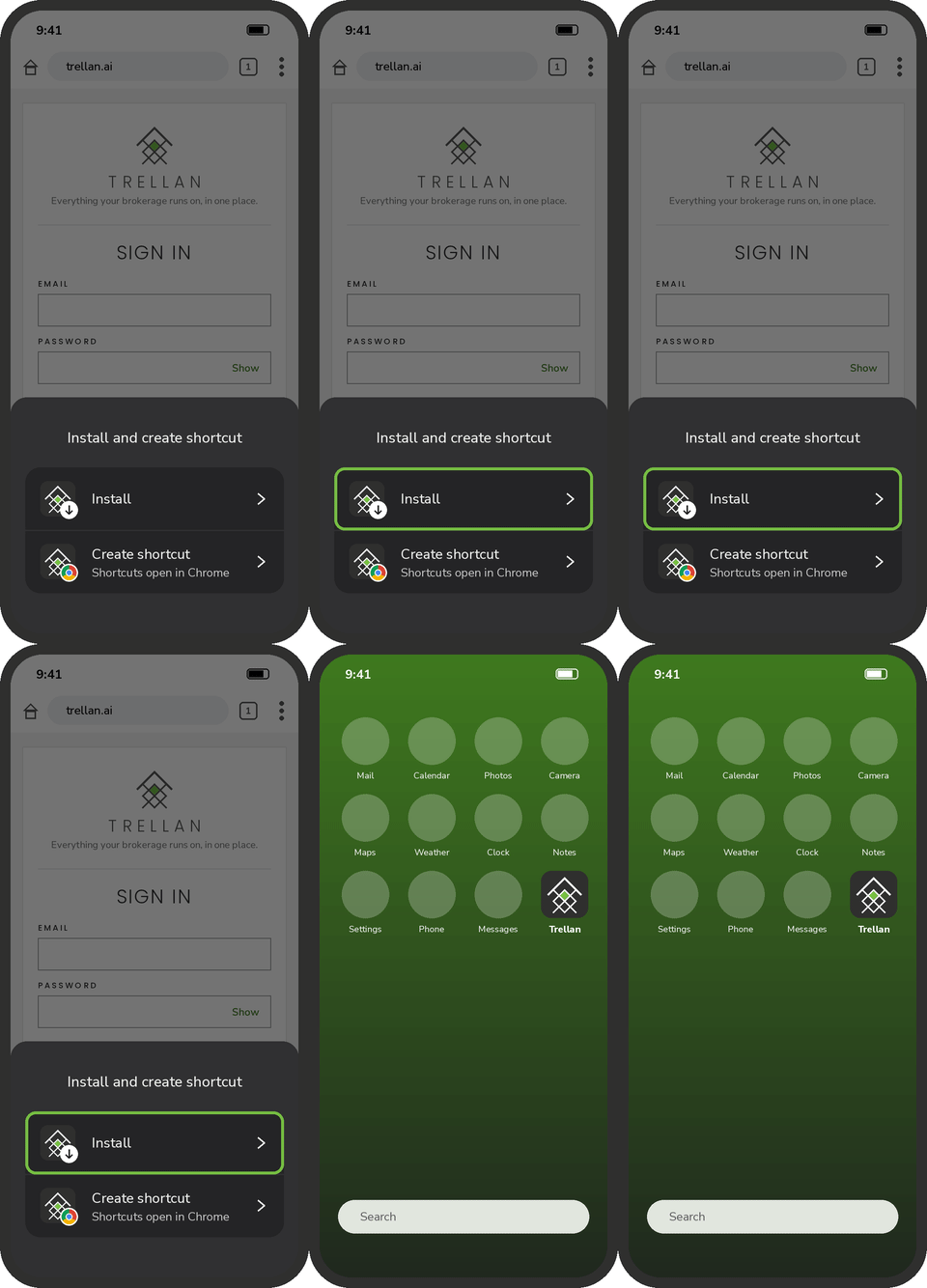
    Chrome’s Install and create shortcut sheet with Install marked
  4. 4

    Open Trellan from your home screen and sign in

    A home screen with the Trellan icon marked, then the Trellan sign-in page

Turn on alerts

Optional. Get an alert about a deadline when Trellan is closed.

  1. 1

    Sign in, open Notifications and tap Turn on

    You must be signed in to Trellan for this. Tap the bell at the top of Trellan. Find Alerts on this device. On iPhone, do this in the installed app, not in Safari.
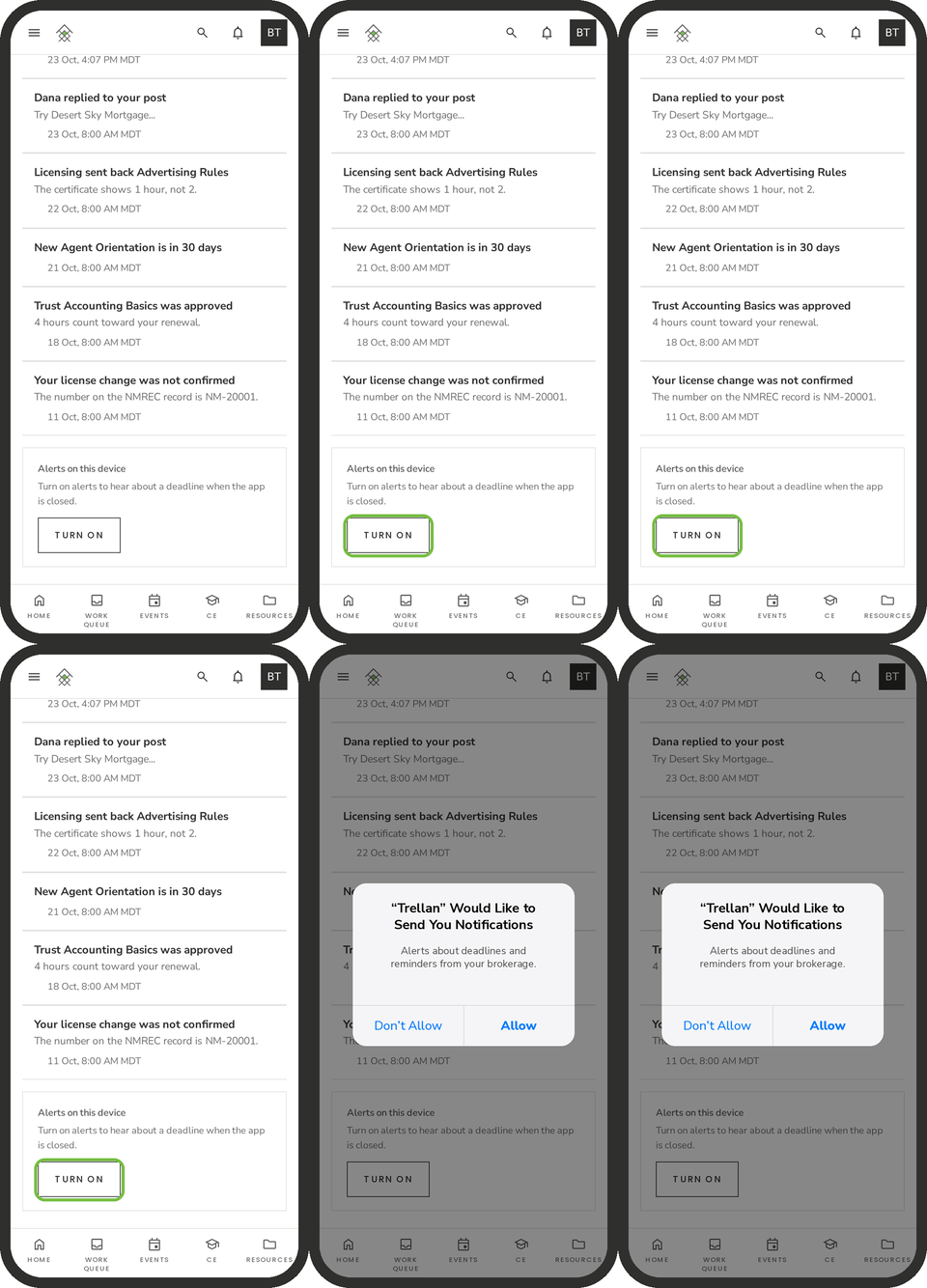
    The Notifications page with Turn on marked
  2. 2

    Tap Allow

    You can turn alerts off on the same page at any time.
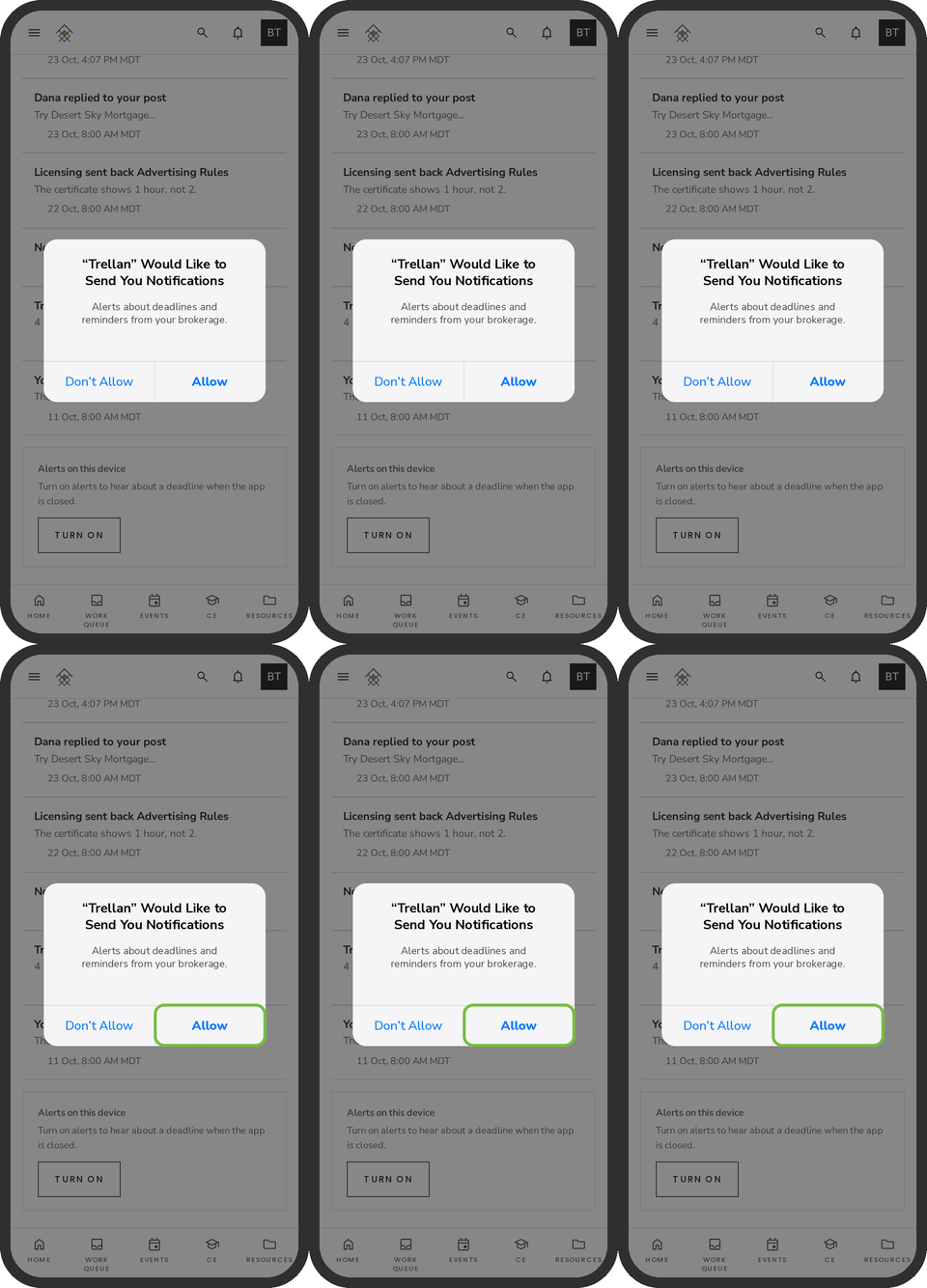
    The phone asking to allow notifications, with Allow marked